

All docs pages
For creators
Add funds
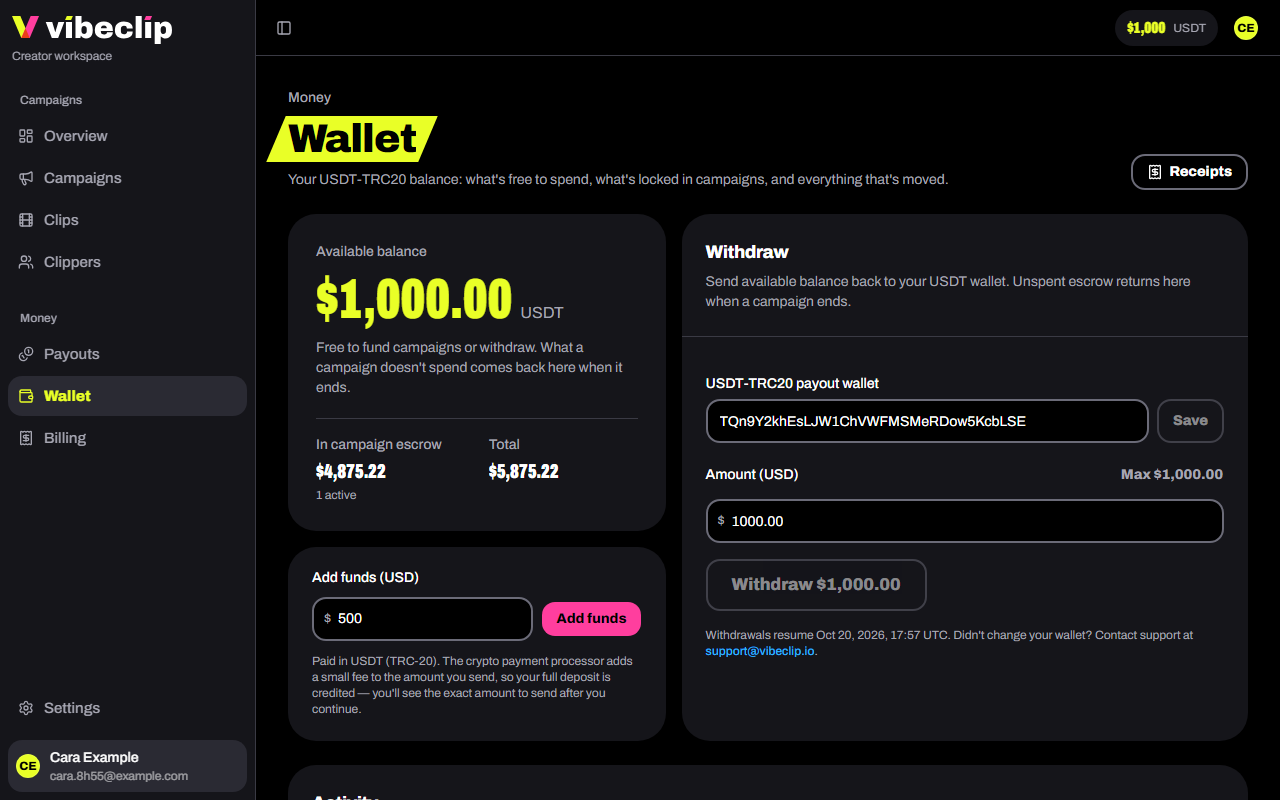
Campaigns are funded from your Vibe Clip wallet. You add funds in USDT on Tron (TRC-20).
Start a deposit
- Open Wallet.
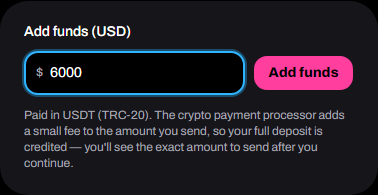
- Under Add funds (USD), enter the amount. The smallest deposit our payment partner accepts shows under the field. The largest is $1,000,000.
- Tap Add funds.
Send the payment
An Awaiting payment card appears with:
- a QR code of the address;
- Send exactly: the amount to send, in USDT;
- to this address: where to send it;
- how long the payment window stays open.
Both the amount and the address have copy buttons.
Send on the TRON (TRC-20) network only. USDT sent on any other network, such as Ethereum (ERC-20), BSC (BEP-20) or Solana, is lost for good and can't be recovered.
- Send the exact amount, in one transaction. It already includes the payment processor's fee, so your full deposit is credited.
- Your balance updates by itself once the payment confirms on the network. To check sooner, tap Check status.
- Sent it after the window closed? It's still credited once it confirms.
- Sent too little? We credit what arrived. Send the rest to the same address to complete it.
- Changed your mind? Tap Cancel deposit. If you'd already sent the crypto, it still lands in your balance.
Your balance
| Line | Means |
|---|---|
| Available balance | Free to fund campaigns or withdraw |
| In campaign escrow | Set aside for your live and paused campaigns |
| Sending | A withdrawal on its way to your wallet |
| Total | All of it |
Activity lists every deposit and withdrawal, newest first, with a View on Tronscan link for each one on-chain. Each credited deposit gets a receipt in Billing.
Fund a campaign straight from a deposit
If a draft campaign needs more than your balance, its Add button opens the wallet with the missing amount filled in. The campaign is funded, and goes live, the moment that deposit is credited.